
Every week we pick out the AI changes that matter to UK businesses: the AI assistants that can now connect to the software you already use, and the changes at ChatGPT, Claude, Gemini and Copilot. Each item says what changed, what it means for you and how to use it, with a link to the source. Missed last week? Read Week 2: Planday, Gemini for small business and Zoom.
New to connectors? Most of these use MCP, the standard way an AI assistant plugs into business software. Our guide what MCP is and why it matters explains it in plain English.
New AI connections
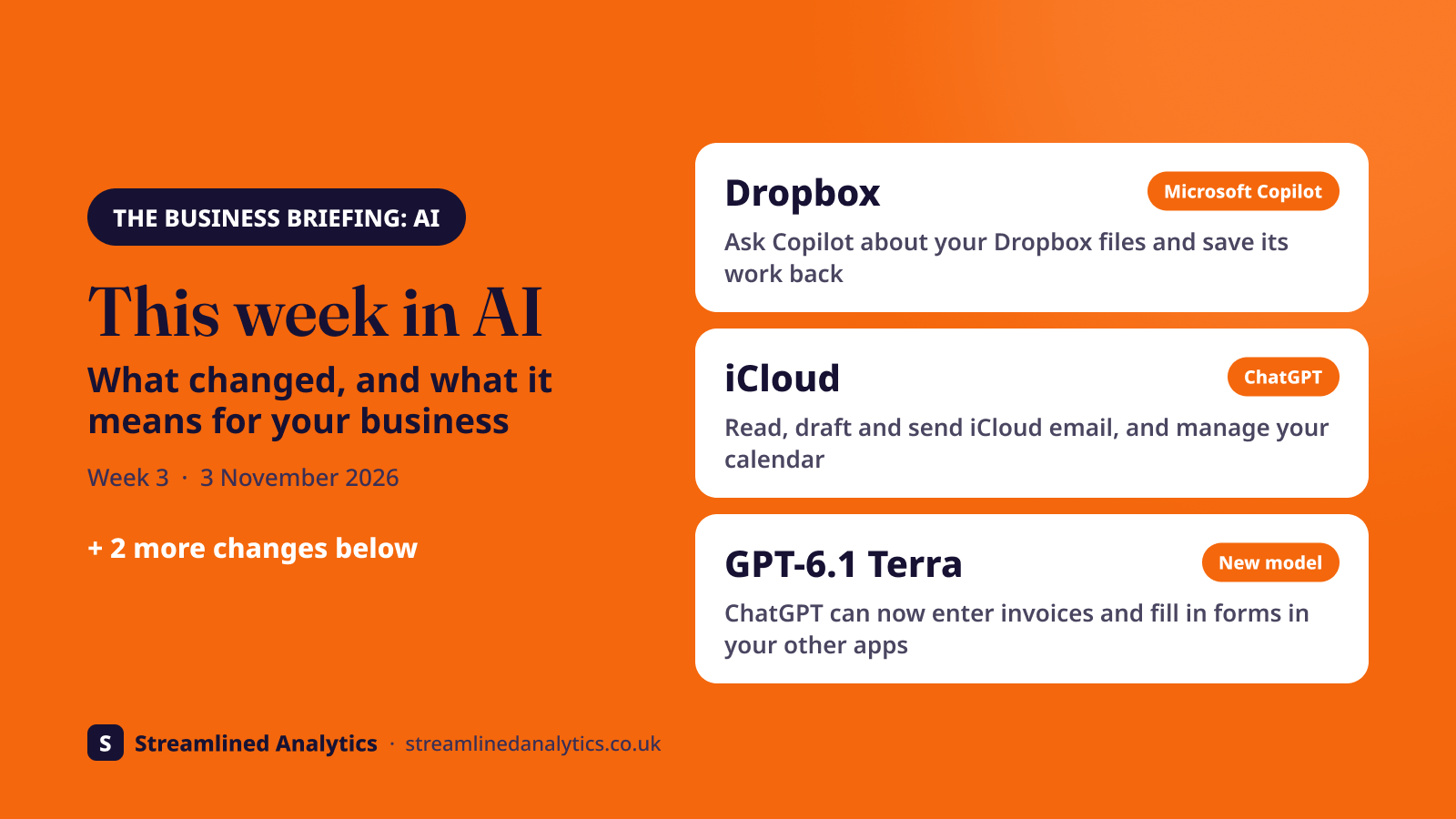
Dropbox for Microsoft Copilot: ask Copilot about your Dropbox files#
Dropbox now has an app for Microsoft Copilot. Copilot can find, open and summarise your Dropbox files and folders, create shared links, and save new text it writes back into Dropbox. Dropbox says it's “available to customers on all Dropbox plans”.
What it means for your business: if your team keeps project files, quotes or contracts in Dropbox but works in Microsoft 365, you no longer have to move files across to use Copilot on them. Ask Copilot to summarise the latest version of a contract, find the drawings for a job, or write up meeting notes and save them in the right Dropbox folder. Copilot only sees what your own Dropbox login can see.
How to use it:
- Log in to Microsoft Copilot and open Copilot Cowork.
- Click Customize, search for Dropbox for Copilot, then click Install and Connect.
- Log in to Dropbox in the window that opens and click Allow.
- Start a new task and mention Dropbox in your request, for example “summarise the latest quote in the Smith Road folder in Dropbox”.
Check before you start: Copilot Cowork is part of Microsoft 365 Copilot, is switched off by default and is billed per use on top of the Copilot licence, so your Microsoft 365 admin may need to turn it on and set up billing first. Saved files are text only, up to 5 MB each.
Source: Dropbox help centre: connect Dropbox to Microsoft Copilot
New AI connections
iCloud Mail and Calendar now connect to ChatGPT#
OpenAI added iCloud Mail and iCloud Calendar plugins to ChatGPT on 27 October. They're available on all ChatGPT plans, including Free, on the web, desktop and iPhone.
What it means for your business: if you run your business from an iPhone and an iCloud email address, ChatGPT can now find and read your emails, draft and send replies, and view, add and change calendar events. For example: “find the email from the electrician about Thursday and draft a reply confirming 9am”, or “move Friday's site visit to Monday morning”.
How to use it:
- Create an app-specific password in your Apple Account (account.apple.com > Sign-In and Security). Don't use your main Apple password.
- In ChatGPT, go to Settings > Plugins and choose iCloud Mail or iCloud Calendar.
- Connect each one separately. Mail uses your iCloud email address; Calendar uses your main Apple Account email.
It only works with @icloud.com, @me.com and @mac.com addresses. Gmail or Outlook accounts added to the iPhone Mail app aren't included. Check drafts before letting ChatGPT send anything.
Source: OpenAI's ChatGPT account on X, via iGeeksBlog, 28 Oct 2026
New AI connections
Dext AI Connector: accountants can ask Claude, ChatGPT and Copilot about their clients#
Dext, the bookkeeping automation software used by many UK accountants and bookkeepers, launched its AI Connector on 22 October. It connects a practice's Dext data to Claude, ChatGPT and Copilot.
What it means for your business: if you run an accounting or bookkeeping practice, ask questions like “which clients have the lowest health scores?” or “which clients are missing a dividends account before year end?” and get answers from live Dext data. It's read-only: it can't create approvals or change anything in Dext, and each person only sees what they can already see in Dext. It's included at no extra cost on the Dext Practice Advanced plan. Dext Business accounts can't connect, so this is for practices, not for their clients.
How to use it:
- Ask your firm's admin to add the Dext AI Connector to your Claude or ChatGPT workspace. It needs a firm workspace, not a personal account.
- Claude: go to Settings > Connectors, click Connect next to Dext, choose your practice and click Allow.
- ChatGPT: go to Settings > Plugins > Browse directory, search for Dext, choose your practice and log in.
- Copilot: it works through Copilot Studio agents and isn't self-serve yet, so contact your Dext account manager.
Answers are processed by the AI provider you choose, so check that provider's business data settings first. For more on where AI fits in a practice, see AI for accountants.
Source: Dext, 22 Oct 2026 · Dext help: connect Dext to Claude, ChatGPT or Copilot
Big AI providers
GPT-6.1 Terra: ChatGPT can now use your other apps to get admin done#
OpenAI began rolling out GPT-6.1 Terra on 26 October. It's built for “computer use”: it can click through desktop apps and websites to finish multi-step jobs for you. OpenAI's own examples include entering invoice details into accounting software, drafting proposals, reading technical drawings and filling in forms.
What it means for your business: most AI so far has written things for you to copy across. Terra is aimed at doing the copying itself, the repetitive data entry between systems that eats admin time. It's also faster and, for developers, half the price of OpenAI's previous models, at $1 per million input tokens and $5 per million output tokens.
How to use it:
- It's in ChatGPT Work and Codex, not ordinary ChatGPT chat. It's rolling out to Plus, Pro, Enterprise and Edu subscribers; OpenAI's release notes also list Business.
- In ChatGPT Work, pick GPT-6.1 Terra (some Plus and Pro users will find it set as the default).
- Start with a low-risk, repetitive job, such as copying ten supplier invoices into a spreadsheet, and watch what it does before trusting it with your accounts.
Keep a person checking anything it enters into financial or customer systems. Choosing between assistants? See Copilot vs ChatGPT.
Source: IT Brief UK, 28 Oct 2026
Big AI providers
Outlook: Copilot Prioritize is being retired#
Microsoft is removing Copilot Prioritize, the feature that uses Copilot to sort your Outlook inbox by importance, along with its inbox filters. Removal started on 26 October across all Outlook apps, with Microsoft's updated notice giving March 2027 to finish. Copilot themes and the “Wrap up your day” prompt are going too.
What it means for your business: if you or your team relied on Copilot to flag important emails, that sorting will stop. Copilot itself stays in Outlook for drafting and summarising.
How to use it: no admin action is needed. Set up Outlook rules or Focused Inbox to replace it, and update any staff guides that mention Prioritize.
Source: Microsoft 365 message center MC1519861
Next step
What to do next#
Want to know which of your systems can connect to AI today? Send us the list of software you use for our free AI connections report. We'll tell you what connects now, what it can safely do, and when the rest is likely to follow. If you're just getting started, our free guide to connecting AI to your business covers the basics.